Scribble Maps Connect
Scribble Maps Connect allows your application to access maps created by users on Scribble Maps for free in a variety of formats. This is useful if you would like your users to be able to use Scribble Maps to generate geo data for your application.
Try It
Click the button below to try the picker with a demo client. You will be prompted to log in if not already signed in.
Map Picker (Recommended)
The fastest way to add map drawing and annotation to any web application. Users create maps on Scribble Maps for free and your app receives the geodata (GeoJSON, KML, CSV, GPX, Shapefile, and more) via a simple popup, no map rendering library, server code, or OAuth tokens required. Just a free Client ID from developers.scribblemaps.com.
<script src="https://api.scribblemaps.com/connect/picker.js"></script>ScribbleMapsConnect.pick({
clientId: 'YOUR_CLIENT_ID',
format: 'geojson', // geojson | kml | csv | smjson | gpx | dxf | shp
tabs: ['user', 'team', 'shared'], // optional - default: all three
theme: 'auto', // optional - 'dark', 'light', or 'auto' (default)
onSelect: function (result) {
console.log(result.mapCode); // "BvE7Ux9iRC"
console.log(result.title); // "My Map"
console.log(result.data); // GeoJSON object, KML string, etc.
},
onCancel: function () {
console.log('User cancelled');
},
onError: function (err) {
console.log('Error:', err.message);
}
});- geojson – GeoJSON object
- kml – KML string
- csv – CSV string
- smjson – ScribbleMaps JSON object
- gpx – GPX string
- dxf – DXF string
- shp – Returns a
downloadUrlfor the zipped shapefile
{
  mapCode: "BvE7Ux9iRC",
  title: "My Map",
  description: "A description",
  thumbUrl: "//scribblemaps.com/api/maps/images/BvE7Ux9iRC_thumb_400x400.jpg",
  format: "geojson",
  data: { ... },           // map data in the requested format
  downloadUrl: null         // only set for binary formats (shp)
}Use these ready-made buttons in your app to launch the Map Picker. Available in dark and light styles.
Button styles are automatically included by picker.js. See the Map Picker documentation for the full button HTML code.
Advanced: Direct API Access
For more control, you can use the full OAuth 2 flow to access user map data directly via the API. This requires server-side code to handle token exchange.
Quick Setup
Instructions
Scribble Maps Connect uses OAuth 2 to allow you to read user map data. If you have ever granted an application permission to your data, you will already be familiar with this process from a user perspective.
Broad Process Flow Overview
- You send the user to the Auth URL (above). This is often done inside of a popup.
- User grants permission and this fowards a code as a get var to the {REDIRECT_URI} you specify in the Auth URL (above).
- You take this code and submit it (serverside) along with your Client Secret to retrieve a token and a refresh token from the token URL (above).
- You use the token in header calls to our API to fetch data on the user's behalf.
- Use the refresh token to get a new token when you want to make calls at a later date.
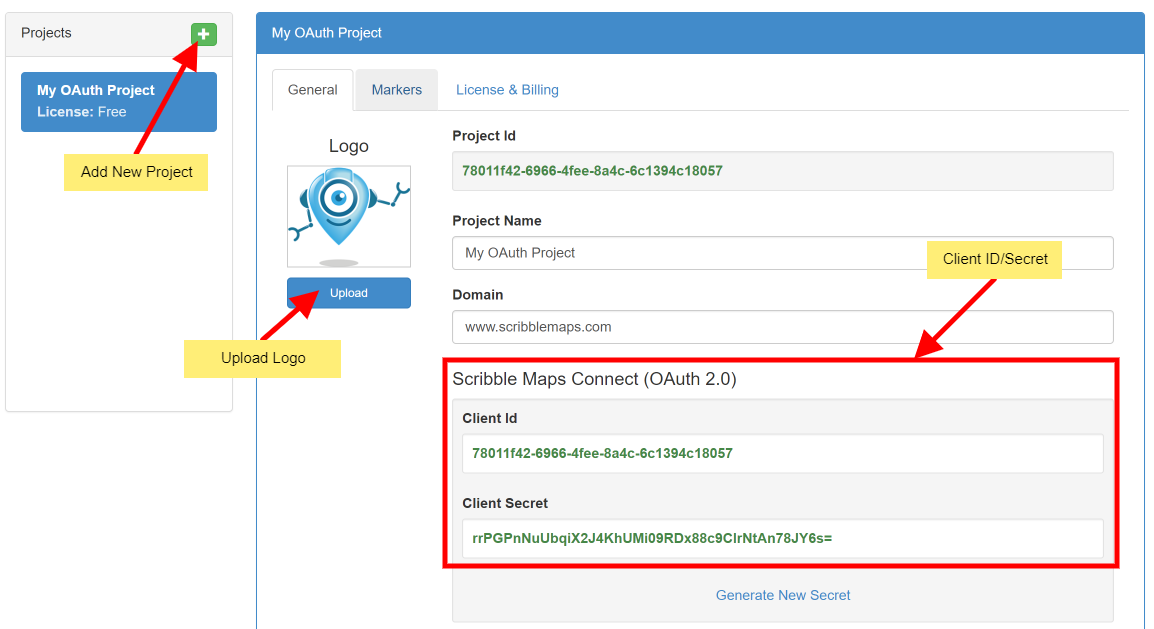
Step #1: Get a Client ID/Secret
The first thing you will want to do is setup a project and get your Client ID/Secret. Do this by visiting https://developers.scribblemaps.com. This login is the same as a scribblemaps.com login.
Step #2: Link to Authorization URL
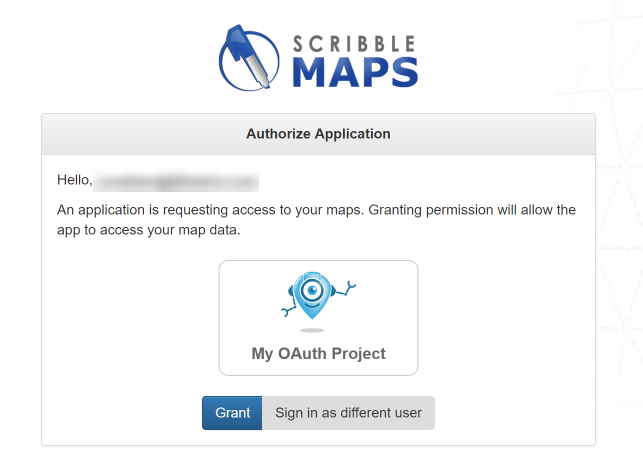
Link to the Auth URL with your client_id and redirect_uri. Users will see the following when authorizing.
Step #3: Fetch Token (Serverside)
Take the query parameter (code) passed to your redirect_uri and make a serverside call to the Token URL (above) to fetch the tokens. Here is a postman example.
code: mXrvCnwBE49eQ76uHuj0
client_id: 78011f42-6966-4fee-8a4c-6c1394c18057
client_secret: ztdV2xvJDIOk2xegWXw2x8m5ITrBCUY0WzfqBewc8Rw=
grant_type: authorization_code
redirect_uri: https://localhost/oauth/complete/
The above call to the token will return an access_token and refresh_token.
Step #4: Use the access_token
You can now pass the value of the access_token in the Authorization header as bearer to an API URL.
You can view a list of available OAuth API Endpoints here.